

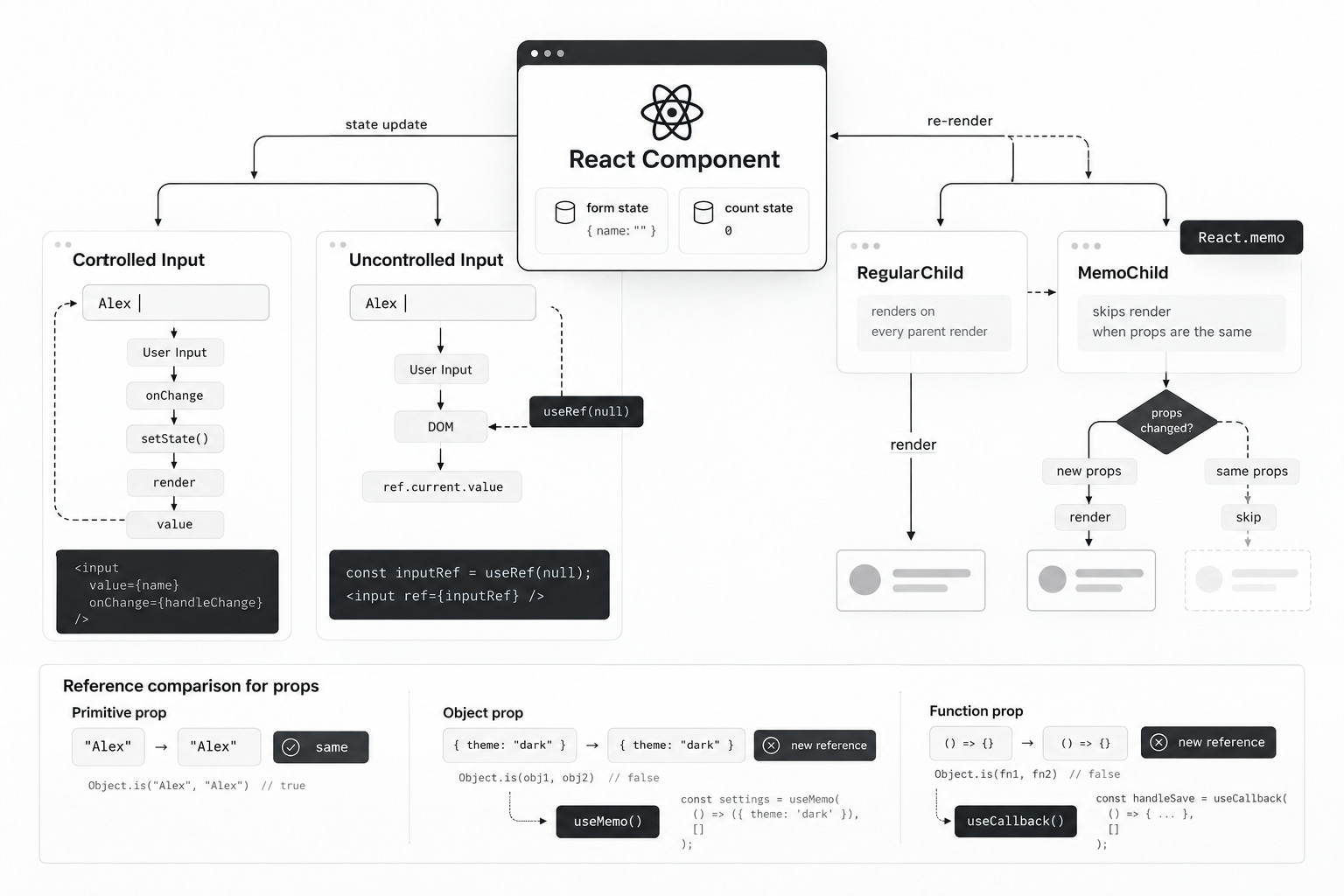
React forms and performance optimization are usually taught as separate subjects.
First you learn useState, controlled inputs, and validation. Much later, someone introduces React.memo, useCallback, and the idea of avoiding unnecessary renders.
They are more closely related than they appear.
Both topics come back to the same questions:
Where does the data live?
What causes a component to render again?
And when can React safely skip that work?
A form is a good place to explore these questions because the difference is visible immediately. Type into an input, add a few console.log() calls, and React’s rendering model becomes much easier to understand.
Let’s start with the simplest case.
Controlled Components: React Owns the Value
A controlled input gets its current value from React state.
import { useState } from 'react';

export default function ControlledInput() {
  const [name, setName] = useState('');

  return (
    <label>
      Name
      <input
        type="text"
        value={name}
        onChange={(event) => setName(event.target.value)}
      />
    </label>
  );
}
There are two important lines here:
value={name}and:
onChange={(event) => setName(event.target.value)}The first tells the input what value it should display.
The second takes the user’s latest input and stores it in React state.
So when someone types A, the flow looks roughly like this:
User types "A"
    ↓
input change event fires
    ↓
event.target.value === "A"
    ↓
setName("A")
    ↓
React schedules an update
    ↓
component renders again
    ↓
<input value="A" />
The important part is not that React somehow replaces the browser.
The important part is ownership.
For a controlled input, React state is the value your application treats as authoritative. The input displays whatever value the current render gives it.
That makes controlled inputs useful when the UI needs to react immediately to what the user types.
For example:
function SearchBox() {
  const [query, setQuery] = useState('');

  return (
    <>
      <input
        value={query}
        onChange={(event) => setQuery(event.target.value)}
      />

      <p>Searching for: {query || 'nothing yet'}</p>
    </>
  );
}
Every change affects more than the input itself. The text below it depends on the same state.
That is where controlled components become convenient.
What Exactly Is event.target.value?
Inside an input handler, React gives us an event object:
function handleChange(event) {
  console.log(event.target.value);
}
event.target refers to the element that triggered the event.
In this example, that is the <input>.
Its value property contains the current text:
event.target.valueWe can then copy that value into state:
setName(event.target.value);React uses its event system around browser events, but in normal application code you generally do not need to think deeply about that abstraction. What matters here is simple: read the input value and update state.
Why Controlled Inputs Are Useful
A controlled input creates an explicit connection between application state and the DOM.
That makes features like these straightforward:
live validation
character counters
conditional UI
input formatting
dependent fields
search suggestions
disabling submit buttons
Suppose a username must contain at least three characters.
function UsernameField() {
  const [username, setUsername] = useState('');

  const isTooShort =
    username.length > 0 && username.length < 3;

  return (
    <div>
      <input
        value={username}
        onChange={(event) => setUsername(event.target.value)}
      />

      {isTooShort && (
        <p>Username must contain at least 3 characters.</p>
      )}
    </div>
  );
}
There is no need to manually find the input in the DOM or update the message underneath it.
State changes.
React renders the appropriate UI.
Uncontrolled Components: Let the DOM Keep the Value
Not every input needs to update React state after every keystroke.
Sometimes you only care about the value when the user submits the form.
That is where uncontrolled inputs can be useful.
import { useRef } from 'react';

export default function UncontrolledInput() {
  const inputRef = useRef(null);

  function handleSubmit(event) {
    event.preventDefault();

    const value = inputRef.current.value;

    console.log(value);
  }

  return (
    <form onSubmit={handleSubmit}>
      <input ref={inputRef} type="text" />

      <button type="submit">
        Submit
      </button>
    </form>
  );
}
Notice what is missing:
value={...}
onChange={...}
React is not keeping the text in component state.
The browser manages the current input value, and we read it when we need it.
What useRef() Is Doing
Calling:
const inputRef = useRef(null);gives us an object shaped roughly like this:
{
  current: null
}
After React attaches the ref to the input:
<input ref={inputRef} />inputRef.current points to the DOM element.
That means we can access normal DOM properties:
inputRef.current.valueOne useful difference between state and refs is that changing a ref does not trigger a render.
Compare these two ideas:
setCount(10);This updates state and can cause the component to render again.
But:
someRef.current = 10;changes the ref value without scheduling a render.
That is why refs are useful for values React needs to remember but does not need to display directly.
Typical examples include:
DOM elements
timer IDs
previous values
mutable integration objects
values used by event handlers
A Better Uncontrolled Form With FormData
A common explanation of uncontrolled forms says that every field requires its own ref.
You can do that:
const usernameRef = useRef(null);
const passwordRef = useRef(null);
but it is not your only option.
For regular HTML forms, FormData is often cleaner.
export default function RegisterForm() {
  function handleSubmit(event) {
    event.preventDefault();

    const formData = new FormData(event.currentTarget);

    const username = formData.get('username');
    const password = formData.get('password');

    console.log({
      username,
      password,
    });
  }

  return (
    <form onSubmit={handleSubmit}>
      <input
        name="username"
        type="text"
        placeholder="Username"
      />

      <input
        name="password"
        type="password"
        placeholder="Password"
      />

      <button type="submit">
        Create account
      </button>
    </form>
  );
}
Now the browser owns the field values until submission.
We do not need one ref per field.
For a simple form that only sends values somewhere, this can be perfectly reasonable.
Controlled or Uncontrolled?
Neither approach is automatically better.
Choose based on what the interface needs.
A controlled field makes sense when its value affects the UI while the user is typing.
For example:
live validation
autocomplete
conditional fields
formatted values
live previews
character limits
dependent controls
An uncontrolled field can be simpler when you only need the final value.
Think of:
small submission forms
simple search boxes
file inputs
forms based heavily on native browser behavior
You can also mix both approaches when there is a good reason.
React does not require every input in an application to follow the same strategy.
Managing Multiple Fields With One State Object
Once a form starts doing validation or coordinating several fields, controlled state becomes attractive.
Instead of creating separate state variables:
const [username, setUsername] = useState('');
const [password, setPassword] = useState('');
const [email, setEmail] = useState('');
you can group related values:
const [form, setForm] = useState({
  username: '',
  email: '',
  password: '',
});
Then one change handler can update every field.
function handleChange(event) {
  const { name, value } = event.target;

  setForm((currentForm) => ({
    ...currentForm,
    [name]: value,
  }));
}
The corresponding inputs only need matching name attributes:
<input
  name="username"
  value={form.username}
  onChange={handleChange}
/>

<input
  name="email"
  value={form.email}
  onChange={handleChange}
/>

<input
  name="password"
  type="password"
  value={form.password}
  onChange={handleChange}
/>
This part:
[name]: valueuses a computed property name.
If:
name === 'email'then React effectively receives:
setForm((currentForm) => ({
  ...currentForm,
  email: value,
}));
The functional form of setForm is useful here because the next state is based on the previous object.
Building a Practical Login Form
Let’s turn the same idea into something closer to a real component.
import { useState } from 'react';

const initialForm = {
  username: '',
  password: '',
};

function validateField(name, value) {
  if (name === 'username') {
    if (!value.trim()) {
      return 'Username is required.';
    }

    if (value.trim().length < 3) {
      return 'Username must contain at least 3 characters.';
    }
  }

  if (name === 'password') {
    if (!value) {
      return 'Password is required.';
    }

    if (value.length < 8) {
      return 'Password must contain at least 8 characters.';
    }
  }

  return '';
}

export default function LoginForm() {
  const [form, setForm] = useState(initialForm);
  const [errors, setErrors] = useState({});

  function handleChange(event) {
    const { name, value } = event.target;

    setForm((currentForm) => ({
      ...currentForm,
      [name]: value,
    }));

    setErrors((currentErrors) => ({
      ...currentErrors,
      [name]: validateField(name, value),
    }));
  }

  const isValid =
    form.username.trim().length >= 3 &&
    form.password.length >= 8 &&
    !errors.username &&
    !errors.password;

  function handleSubmit(event) {
    event.preventDefault();

    if (!isValid) {
      return;
    }

    console.log('Submitting:', form);
  }

  return (
    <form onSubmit={handleSubmit}>
      <div>
        <label htmlFor="username">
          Username
        </label>

        <input
          id="username"
          name="username"
          type="text"
          value={form.username}
          onChange={handleChange}
        />

        {errors.username && (
          <p>{errors.username}</p>
        )}
      </div>

      <div>
        <label htmlFor="password">
          Password
        </label>

        <input
          id="password"
          name="password"
          type="password"
          value={form.password}
          onChange={handleChange}
        />

        {errors.password && (
          <p>{errors.password}</p>
        )}
      </div>

      <button
        type="submit"
        disabled={!isValid}
      >
        Log in
      </button>
    </form>
  );
}
There are several useful patterns hiding inside this fairly small component.
Keep Validation Logic Separate
Our validation function does not update React state:
function validateField(name, value) {
  // ...

  return '';
}
It receives data and returns a result.
That makes it easy to understand and easy to test.
For example:
validateField('username', '');
// "Username is required."

validateField('username', 'ab');
// "Username must contain at least 3 characters."

validateField('username', 'alex');
// ""

validateField('password', '123');
// "Password must contain at least 8 characters."
The React component decides what to do with that result.
setErrors((currentErrors) => ({
  ...currentErrors,
  [name]: validateField(name, value),
}));
Keeping those responsibilities separate usually produces cleaner form code.
Derived Values Do Not Always Need State
Look at isValid:
const isValid =
  form.username.trim().length >= 3 &&
  form.password.length >= 8 &&
  !errors.username &&
  !errors.password;
There is no:
const [isValid, setIsValid] = useState(false);That is intentional.
isValid can already be calculated from existing state.
Storing another copy would create another value we have to keep synchronized.
Imagine doing this instead:
setForm(...);
setErrors(...);
setIsValid(...);
Now three pieces of state are related.
A bug in one update can leave them disagreeing with each other.
If something can be calculated cheaply from existing state during rendering, calculating it directly is often simpler.
form + errors
     ↓
  isValid
     ↓
button disabled state
No synchronization layer is required.
State Changes and Rendering
At this point the relationship between forms and rendering should be clearer.
When we run:
setForm(...)the component receives new state.
React then renders the component again so it can determine what the UI should look like now.
For our login form:
User types
    ↓
handleChange()
    ↓
form state changes
    ↓
errors state changes
    ↓
component renders
    ↓
isValid is recalculated
    ↓
error messages and button state reflect the new data
That behavior is exactly what makes controlled forms convenient.
It also leads to another question.
What happens to child components when their parent renders again?
Parent Renders and Child Components
Consider this component:
import { useState } from 'react';

function Profile({ name }) {
  console.log('Profile rendered');

  return <p>Hello, {name}</p>;
}

export default function App() {
  const [count, setCount] = useState(0);
  const [name, setName] = useState('Alex');

  console.log('App rendered');

  return (
    <>
      <button
        onClick={() => setCount((value) => value + 1)}
      >
        Count: {count}
      </button>

      <button
        onClick={() => setName('Sam')}
      >
        Change name
      </button>

      <Profile name={name} />
    </>
  );
}
Click the counter.
count changes, so App renders again.
Profile is part of the returned component tree, so React normally calls it again too, even though its name prop did not change.
For a tiny component, this does not matter.
But sometimes a child is expensive enough that skipping unnecessary work becomes useful.
That is where memo enters the picture.
Using React.memo
Wrap the child component with memo:
import { memo } from 'react';

const Profile = memo(function Profile({ name }) {
  console.log('Profile rendered');

  return <p>Hello, {name}</p>;
});
Now our complete example becomes:
import { memo, useState } from 'react';

const Profile = memo(function Profile({ name }) {
  console.log('Profile rendered');

  return <p>Hello, {name}</p>;
});

export default function App() {
  const [count, setCount] = useState(0);
  const [name, setName] = useState('Alex');

  console.log('App rendered');

  return (
    <>
      <button
        onClick={() => setCount((value) => value + 1)}
      >
        Count: {count}
      </button>

      <button
        onClick={() => setName('Sam')}
      >
        Change name
      </button>

      <Profile name={name} />
    </>
  );
}
Now try two experiments.
First, change count.
App renders
Profile can be skipped
The name prop is unchanged.
Then change name.
App renders
Profile renders
The child received different data, so it needs to update.
What memo Actually Compares
By default, memo compares each prop with its previous value.
React uses Object.is for these comparisons.
For primitive values, that usually behaves exactly how you would expect:
Object.is('Alex', 'Alex');
// true

Object.is('Alex', 'Sam');
// false

Object.is(10, 10);
// true
Objects are more interesting.
These two objects contain identical data:
const first = {
  theme: 'dark',
};

const second = {
  theme: 'dark',
};
But they are different objects:
Object.is(first, second);
// false
That matters when passing objects to memoized components.
The Object Prop Problem
Consider this:
const Profile = memo(function Profile({ settings }) {
  console.log('Profile rendered');

  return <p>{settings.theme}</p>;
});

function App() {
  const [count, setCount] = useState(0);

  const settings = {
    theme: 'dark',
  };

  return (
    <>
      <button
        onClick={() => setCount((value) => value + 1)}
      >
        {count}
      </button>

      <Profile settings={settings} />
    </>
  );
}
Every time App renders, this runs again:
const settings = {
  theme: 'dark',
};
The object contains the same data, but it is a new reference.
From memo‘s point of view, the prop changed.
That means the child cannot be skipped.
One option is to avoid passing the object at all:
<Profile theme="dark" />This is often the simplest solution.
If the object genuinely needs to exist as a stable prop, useMemo can sometimes help:
const settings = useMemo(
  () => ({
    theme: 'dark',
  }),
  []
);
But do not add useMemo automatically to every object you create.
Memoization has its own complexity and cost. It should solve an actual problem, not become decoration.
Function Props Have the Same Reference Problem
Functions are objects too.
A function created during rendering receives a new reference:
function App() {
  const handleSave = () => {
    console.log('Saved');
  };

  return <Toolbar onSave={handleSave} />;
}
If Toolbar is memoized, that new function reference can prevent it from skipping a render.
This is one situation where useCallback may be useful.
import { memo, useCallback, useState } from 'react';

const Toolbar = memo(function Toolbar({ onSave }) {
  console.log('Toolbar rendered');

  return (
    <button onClick={onSave}>
      Save
    </button>
  );
});

export default function App() {
  const [count, setCount] = useState(0);

  const handleSave = useCallback(() => {
    console.log('Saved');
  }, []);

  return (
    <>
      <button
        onClick={() => setCount((value) => value + 1)}
      >
        Count: {count}
      </button>

      <Toolbar onSave={handleSave} />
    </>
  );
}
useCallback keeps the same function reference while its dependencies remain unchanged.
That gives memo a stable prop to compare.
Still, useCallback is not something every function needs.
If the child is not memoized, or rendering it is cheap, adding useCallback may accomplish nothing useful.
Optimize because you have a reason.
memo Does Not Freeze a Component
There is another important detail.
memo does not mean:
This component will never render unless its props change.A memoized component can still render when its own state changes.
const Counter = memo(function Counter() {
  const [count, setCount] = useState(0);

  return (
    <button
      onClick={() => setCount((value) => value + 1)}
    >
      {count}
    </button>
  );
});
Its parent might pass exactly the same props, but clicking the button changes the component’s own state.
It needs to render.
Context changes can also affect memoized components that consume that context.
So a better mental model is:
memo can skip some parent-driven renders when props remain equalThat is much more accurate than thinking of it as an off switch for rendering.
Forms and memo Are Two Sides of the Same Model
We can now connect both halves of the article.
Controlled forms deliberately use state changes to update the interface.
user input
    ↓
state
    ↓
render
    ↓
updated UI
memo deals with the other side of the problem.
parent renders
    ↓
child receives same props
    ↓
child render may be skipped
One technique intentionally triggers React’s rendering system.
The other attempts to avoid work when the result would be unchanged.
Both become easier once you stop thinking of React rendering as something mysterious and start treating it as a consequence of data changes.
A Small Experiment Is Better Than Memorizing Rules
You can see most of this behavior with a few console.log() calls.
import { memo, useState } from 'react';

const UserCard = memo(function UserCard({ name }) {
  console.log('UserCard render');

  return <p>User: {name}</p>;
});

export default function Demo() {
  const [name, setName] = useState('Alex');
  const [count, setCount] = useState(0);

  console.log('Demo render');

  return (
    <>
      <input
        value={name}
        onChange={(event) => setName(event.target.value)}
      />

      <button
        onClick={() => setCount((value) => value + 1)}
      >
        Count: {count}
      </button>

      <UserCard name={name} />
    </>
  );
}
Open the console.
Change the counter.
Then edit the name.
Watch which components run.
A five-minute experiment like this usually teaches more than trying to memorize a diagram of React’s rendering process.
Organizing Form Components With a Barrel Export
Once a project grows, you may end up with a directory like this:
components/
  ControlledInput.jsx
  UncontrolledInput.jsx
  CommentBox.jsx
  RegisterForm.jsx
  LoginForm.jsx
  index.js
An index.js file can provide a shared entry point:
export { default as ControlledInput }
  from './ControlledInput';

export { default as UncontrolledInput }
  from './UncontrolledInput';

export { default as CommentBox }
  from './CommentBox';

export { default as RegisterForm }
  from './RegisterForm';

export { default as LoginForm }
  from './LoginForm';
Elsewhere, imports become shorter:
import {
  ControlledInput,
  UncontrolledInput,
  CommentBox,
  RegisterForm,
  LoginForm,
} from './components';
This pattern is commonly called a barrel export.
It can be convenient, although there is no requirement to use it everywhere. In larger codebases, direct imports are sometimes easier to trace and can avoid overly broad module entry points.
Use whichever structure keeps the project easier to navigate.
Final Thoughts
Controlled and uncontrolled components are not competing React features.
They are two ways to decide who owns an input’s current value.
With a controlled component, React state is directly involved in the input’s value. That gives you immediate access to validation, formatting, dependent UI, and other behavior.
With an uncontrolled component, the browser can keep the value until your application actually needs it. For simple forms, that can mean less state and less code.
React.memo answers a different question, but it belongs to the same rendering model.
State changes can cause components to render. Parent renders normally reach their children. If a memoized child receives equivalent props, React may skip calling that component again.
None of these tools should be used because they sound more advanced.
Use controlled state when the interface needs it.
Leave values uncontrolled when React does not need to track every change.
Add memoization when avoiding a render solves a measurable or clearly understood problem.
Once those choices are tied to data ownership and rendering behavior, React forms and performance optimization stop feeling like separate topics. They become different parts of the same system.