

A long form is one of the easiest places to notice bad scrolling behavior.
The user clicks Submit. Validation fails somewhere much farther down the page. React renders the error correctly, but the user cannot see it. From their point of view, nothing happened.
The fix can be only a few lines:
import { useRef } from "react";

export default function Article() {
  const detailsRef = useRef<HTMLDivElement>(null);

  function goToDetails() {
    detailsRef.current?.scrollIntoView({
      behavior: "smooth",
      block: "start",
    });
  }

  return (
    <>
      <button type="button" onClick={goToDetails}>
        Go to details
      </button>

      <div style={{ minHeight: "120vh" }} />

      <section ref={detailsRef}>
        <h2>Details</h2>
        <p>This is the section we wanted to reach.</p>
      </section>
    </>
  );
}
For basic navigation, this is usually all you need.
useRef gives you access to the DOM element. scrollIntoView() asks the browser to bring that element into view. The optional chaining is there because detailsRef.current is still null before React mounts the section.
There is no library involved, no manual coordinate calculation, and no extra state.
The interesting part begins when the page gets more complicated.
The options you actually need
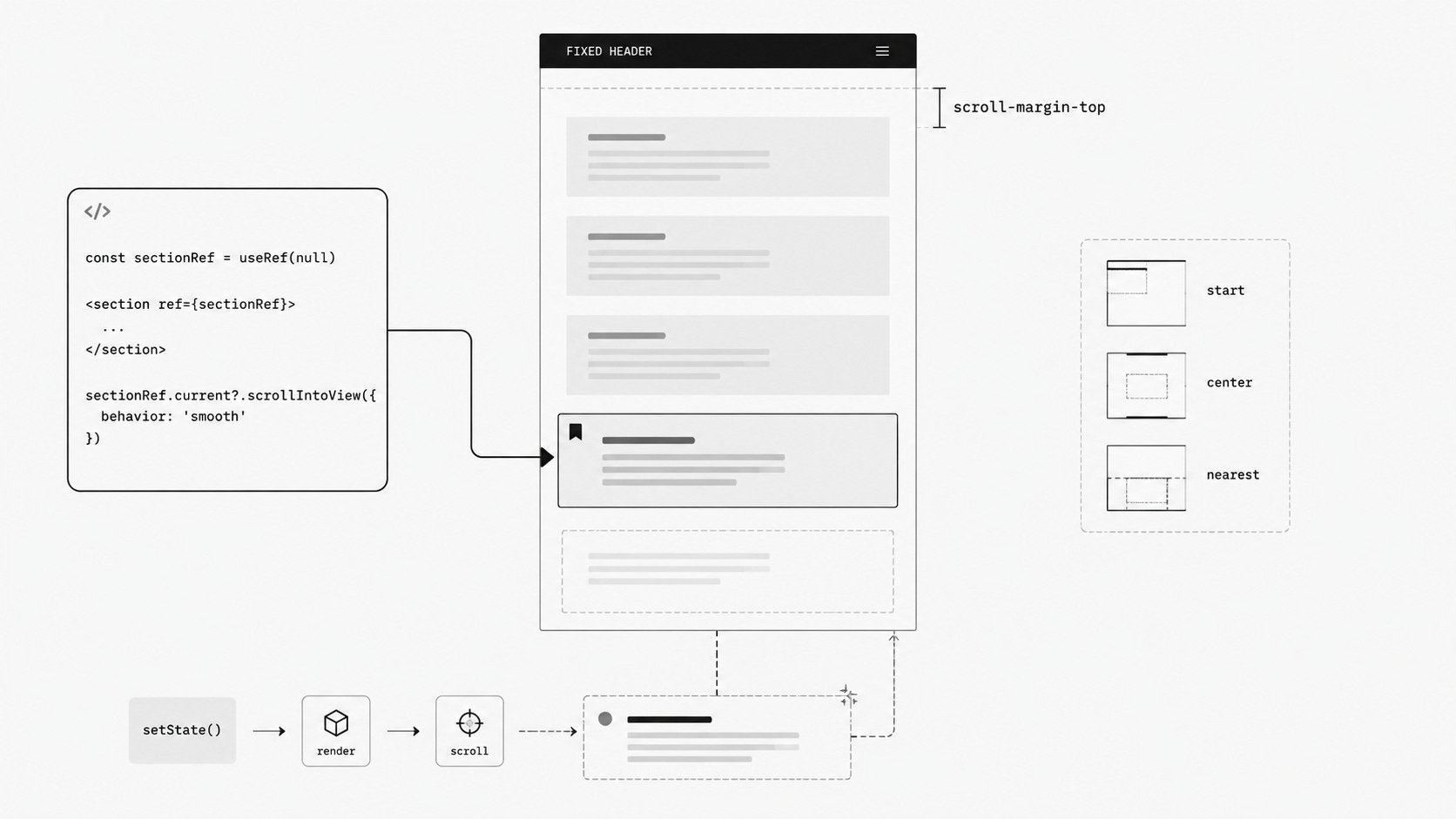
The native scrollIntoView() API has a few useful options, but you do not need to memorize all of them before using it.
For most React components, these three patterns cover nearly everything.
Scroll the element to the top:
element.scrollIntoView();Move it smoothly toward the center:
element.scrollIntoView({
  behavior: "smooth",
  block: "center",
});
Move only when necessary:
element.scrollIntoView({
  block: "nearest",
});
The last one is especially useful.
Imagine a command menu with twenty results. The user moves through them with the keyboard. If every Arrow Down press centers the active item, the list keeps jumping around even when the next item is already visible.
block: "nearest" behaves differently. The browser moves only enough to reveal the target. If the item is already visible, it may not scroll at all.
That small difference makes keyboard-controlled lists feel much calmer.
There is also an older boolean version:
element.scrollIntoView(true);
element.scrollIntoView(false);
It still works, but I would avoid it in new code. The object form makes the intention much easier to understand later.
element.scrollIntoView({
  block: "end",
});
One more thing catches people by surprise. scrollIntoView() is not limited to window.
If the target sits inside a scrollable sidebar or panel, the browser can scroll that container too. In nested layouts, more than one scrollable ancestor may move so the element becomes visible.
Most of the time, this saves you from writing extra code.
Fixed headers should be handled in CSS
A sticky navigation bar creates one of the most common scrolling bugs.
The element reaches the top of the page exactly as requested, then the header covers it.
The first solution people often write looks like this:
const HEADER_HEIGHT = 72;

const top =
  element.getBoundingClientRect().top +
  window.scrollY -
  HEADER_HEIGHT;

window.scrollTo({
  top,
  behavior: "smooth",
});
It works until the header changes.
Then mobile uses another height. A promo banner appears above it. Someone changes the spacing. The target moves into a nested scrollable container and the calculation no longer describes the real layout.
Now the scrolling code owns a magic number that belongs to the CSS.
There is already a property for this:
.article-section {
  scroll-margin-top: 5rem;
}
If the header height is stored in a variable, even better:
:root {
  --header-height: 5rem;
}

.article-section {
  scroll-margin-top: var(--header-height);
}
Your JavaScript can stay simple:
sectionRef.current?.scrollIntoView({
  behavior: "smooth",
  block: "start",
});
scroll-margin-top does not move the element in the normal layout. It only changes how much space the browser leaves when positioning that element during scrolling.
For a fixed or sticky header, this should be the first solution you try.
Scrolling to something React just created
This is where many otherwise correct examples break.
Suppose you add a new row and want to scroll to it immediately:
function addRow() {
  setRows((current) => [...current, createRow()]);

  lastRowRef.current?.scrollIntoView({
    behavior: "smooth",
  });
}
The code looks reasonable, but the new row may not exist yet.
Calling setRows() schedules an update. React still has to render the new list and commit the result to the DOM.
The next line runs before that process is guaranteed to be finished.
At that moment, lastRowRef.current can still point to the previous row.
Scroll after React commits the update
An effect is the simplest solution when scrolling should happen because state changed.
useEffect(() => {
  if (rows.length === 0) return;

  lastRowRef.current?.scrollIntoView({
    behavior: "smooth",
    block: "nearest",
  });
}, [rows.length]);
Now the order is correct.
State changes first. React renders the new row. The DOM is updated. Then the effect runs and scrolls to the element that actually exists.
For smooth scrolling, useEffect is normally enough.
There are a few cases where you want the position corrected before the browser paints the frame. useLayoutEffect can help there.
useLayoutEffect(() => {
  activeItemRef.current?.scrollIntoView({
    block: "nearest",
  });
}, [activeId]);
Do not use useLayoutEffect everywhere just because it sounds more precise. It blocks painting while it runs, so it is better saved for UI work where that timing really matters.
Callback refs are useful when mounting is the event
Sometimes you do not care which state value changed.
You only care about this:
“Run some code when this DOM node appears.”
A callback ref expresses that directly.
import { useCallback } from "react";

const scrollWhenMounted = useCallback(
  (node: HTMLLIElement | null) => {
    if (!node) return;

    node.scrollIntoView({
      behavior: "smooth",
      block: "nearest",
    });
  },
  []
);
You can attach it to the last row:
<ul>
  {rows.map((row, index) => {
    const isLast = index === rows.length - 1;

    return (
      <li
        key={row.id}
        ref={isLast ? scrollWhenMounted : undefined}
      >
        {row.label}
      </li>
    );
  })}
</ul>
React calls the ref when it attaches the node.
No dependency array is needed, and there is no separate effect whose only purpose is waiting for that element to show up.
For components created conditionally, this often reads better.
What about flushSync?
React also gives you a way to force an update to finish synchronously.
import { flushSync } from "react-dom";

function openDetails() {
  flushSync(() => {
    setExpanded(true);
  });

  detailsRef.current?.scrollIntoView({
    behavior: "smooth",
  });
}
After flushSync() returns, React has committed the update.
That means the element rendered by setExpanded(true) can already be available to the ref.
Useful? Yes.
Something to reach for first? Usually not.
flushSync forces React to perform work immediately. That means you are stepping outside its normal batching and scheduling behavior.
If an effect or callback ref gives you the same result, the simpler React flow is usually easier to maintain.
Native smooth scrolling has limits
The native API is good because it is small.
It is also small because it does not expose much control.
That becomes noticeable once scrolling turns into part of the interface animation rather than simple navigation.
You cannot choose the duration
This works:
element.scrollIntoView({
  behavior: "smooth",
});
This does not:
element.scrollIntoView({
  behavior: "smooth",
  duration: 500,
});
There is no duration option.
The browser decides how the smooth movement behaves.
That is fine for jumping between sections. It is less useful when your scroll must line up with another animation that takes a very specific amount of time.
There is no Promise returned by the call
You cannot do this:
await element.scrollIntoView({
  behavior: "smooth",
});

input.focus();
scrollIntoView() does not return a Promise that resolves when the movement ends.
There is a scrollend event in modern browsers, but it is separate from the original function call and may not fit every interaction cleanly.
Using a timeout is tempting:
element.scrollIntoView({
  behavior: "smooth",
});

setTimeout(() => {
  input.focus();
}, 500);
The problem is that 500 is only a guess.
The browser did not promise you a 500ms animation.
You do not get a cancel function
A programmatic smooth scroll can start, then the user may decide they want to move somewhere else.
The native function does not return an animation controller:
const scroll = element.scrollIntoView({
  behavior: "smooth",
});

// There is no API like this.
scroll.cancel();
For small page jumps, you probably do not care.
For long transitions, cancellation starts to matter.
Reduced motion needs attention
If you explicitly request animated scrolling, you should also consider people who have asked the operating system to reduce motion.
A helper can keep that logic in one place:
function getScrollBehavior(): ScrollBehavior {
  const reduceMotion = window.matchMedia(
    "(prefers-reduced-motion: reduce)"
  ).matches;

  return reduceMotion ? "auto" : "smooth";
}
Then use it normally:
element.scrollIntoView({
  behavior: getScrollBehavior(),
  block: "start",
});
This is easy when you have one scroll interaction.
It becomes easier to forget once the same pattern appears across several components.
When a React scrolling hook starts to make sense
Once you need custom timing, cancellation, callbacks, offsets, or reusable container behavior, a hook can be justified.
One option is useScrollIntoView from @reactuses/core.
Install it with:
npm install @reactuses/coreThen:
import { useRef } from "react";
import { useScrollIntoView } from "@reactuses/core";

export default function Article() {
  const targetRef = useRef<HTMLParagraphElement>(null);

  const { scrollIntoView, cancel } = useScrollIntoView(
    targetRef,
    {
      duration: 600,
      offset: 80,
      onScrollFinish: () => {
        targetRef.current?.focus();
      },
    }
  );

  return (
    <>
      <button
        type="button"
        onClick={() =>
          scrollIntoView({
            alignment: "center",
          })
        }
      >
        Go to details
      </button>

      <div style={{ minHeight: "150vh" }} />

      <p ref={targetRef} tabIndex={-1}>
        Details
      </p>

      <button type="button" onClick={cancel}>
        Stop
      </button>
    </>
  );
}
This is a different level of abstraction.
The native browser version gives you simple positioning and browser-controlled smooth motion.
A custom hook can give you things such as animation duration, an easing function, an offset, cancellation, horizontal scrolling, and a callback after the movement finishes.
Those features are useful when the scroll itself is part of the interaction.
They are unnecessary when all you need is “go to this heading.”
Cancellation is a small feature until you feel the difference
Imagine a page starts scrolling for almost a second.
Halfway through, the user touches the trackpad because they want to stop at another section.
If your animation keeps pulling the page toward its original target, the UI suddenly feels like it is fighting them.
Cancelable scrolling solves that problem.
You may also want to stop scrolling when a component disappears.
const { scrollIntoView, cancel } =
  useScrollIntoView(targetRef);

useEffect(() => {
  return () => {
    cancel();
  };
}, [cancel]);
That can matter when the target belongs to a modal, drawer, route, or temporary panel.
If the surrounding UI is gone, continuing its animation makes little sense.
Scrolling inside a container
Not every scroll belongs to the page.
Autocomplete menus, tables, sidebars, message lists, and dropdowns often scroll inside their own element.
In that case, keep references to both the container and target.
const listRef = useRef<HTMLDivElement>(null);
const itemRef = useRef<HTMLLIElement>(null);

const { scrollIntoView } = useScrollIntoView(
  itemRef,
  {
    isList: true,
  },
  listRef
);
Now the scrolling behavior is tied to the list instead of the document.
<button
  type="button"
  onClick={() =>
    scrollIntoView({
      alignment: "start",
    })
  }
>
  Find item
</button>
Passing the container explicitly can also make the component easier to understand.
Someone reading the code later does not have to inspect the CSS just to work out which element is supposed to move.
Horizontal scrolling works the same way
A carousel is the obvious example.
const trackRef = useRef<HTMLDivElement>(null);
const slideRef = useRef<HTMLDivElement>(null);

const { scrollIntoView } = useScrollIntoView(
  slideRef,
  {
    axis: "x",
    duration: 400,
  },
  trackRef
);

function centerCurrentSlide() {
  scrollIntoView({
    alignment: "center",
  });
}
Before reaching for JavaScript here, also consider CSS scroll snapping.
Many carousels can be built with native scrolling and scroll-snap-type, which keeps the browser responsible for most of the interaction.
Custom animation is more useful when you need exact control over how the transition happens.
Scroll to the first invalid form field
Now back to the form from the beginning.
A clean version should not try to scroll before React has rendered the errors.
Instead, store which field failed first, then react to that state.
import {
  FormEvent,
  useEffect,
  useRef,
  useState,
} from "react";

type FieldName = "email" | "address" | "city";

type Errors = Partial<Record<FieldName, string>>;

export default function CheckoutForm() {
  const [errors, setErrors] = useState<Errors>({});
  const [firstInvalid, setFirstInvalid] =
    useState<FieldName | null>(null);

  const fieldRefs = useRef<
    Partial<Record<FieldName, HTMLInputElement | null>>
  >({});

  useEffect(() => {
    if (!firstInvalid) return;

    const input = fieldRefs.current[firstInvalid];

    input?.scrollIntoView({
      behavior: "smooth",
      block: "center",
    });

    input?.focus({
      preventScroll: true,
    });
  }, [firstInvalid]);

  function handleSubmit(
    event: FormEvent<HTMLFormElement>
  ) {
    event.preventDefault();

    const nextErrors = validateForm();

    const firstField =
      (Object.keys(nextErrors)[0] as
        | FieldName
        | undefined) ?? null;

    setErrors(nextErrors);
    setFirstInvalid(firstField);

    if (!firstField) {
      submitForm();
    }
  }

  return (
    <form onSubmit={handleSubmit}>
      <label>
        Email
        <input
          name="email"
          ref={(node) => {
            fieldRefs.current.email = node;
          }}
        />

        {errors.email && (
          <span role="alert">
            {errors.email}
          </span>
        )}
      </label>

      <label>
        Address
        <input
          name="address"
          ref={(node) => {
            fieldRefs.current.address = node;
          }}
        />

        {errors.address && (
          <span role="alert">
            {errors.address}
          </span>
        )}
      </label>

      <label>
        City
        <input
          name="city"
          ref={(node) => {
            fieldRefs.current.city = node;
          }}
        />

        {errors.city && (
          <span role="alert">
            {errors.city}
          </span>
        )}
      </label>

      <button type="submit">
        Place order
      </button>
    </form>
  );
}
This version separates responsibilities nicely.
The submit handler validates and updates state.
The effect handles the DOM work after React has committed that update.
Focus is applied with preventScroll: true so the browser does not perform another unexpected movement after your own scrolling logic runs.
You can also add spacing for the header in CSS:
input {
  scroll-margin-top: 6rem;
}
No header calculation is needed in the component.
A tiny custom hook may be enough
There is a big gap between repeating scrollIntoView() everywhere and installing a full scrolling solution.
A small local hook can cover that middle ground.
import {
  RefObject,
  useCallback,
} from "react";

type ScrollOptions = {
  behavior?: ScrollBehavior;
  block?: ScrollLogicalPosition;
  inline?: ScrollLogicalPosition;
};

export function useScrollToElement<
  T extends HTMLElement
>(
  ref: RefObject<T | null>
) {
  return useCallback(
    (options: ScrollOptions = {}) => {
      ref.current?.scrollIntoView({
        behavior:
          options.behavior ?? "smooth",
        block:
          options.block ?? "nearest",
        inline:
          options.inline ?? "nearest",
      });
    },
    [ref]
  );
}
Then a component only needs this:
const sectionRef =
  useRef<HTMLElement>(null);

const scrollToSection =
  useScrollToElement(sectionRef);
And later:
<button
  type="button"
  onClick={() =>
    scrollToSection({
      block: "start",
    })
  }
>
  Read more
</button>

<section ref={sectionRef}>
  ...
</section>
This keeps your default behavior consistent without introducing an animation system.
For many applications, that is enough.
Do not stack smooth scrolling systems
One subtle source of bad scrolling is having two different systems trying to animate the same container.
For example:
.scroll-container {
  scroll-behavior: smooth;
}
At the same time, JavaScript may be updating scrollTop every frame as part of its own custom animation.
Now the browser is trying to smooth values that your animation is already changing continuously.
The result can feel delayed or strangely elastic.
Pick one source of animation for a container.
If JavaScript controls the movement frame by frame, do not also ask CSS to smooth those changes.
Sometimes instant scrolling is better
Smooth scrolling is not automatically the nicer choice.
Keyboard navigation is a good example.
When a user moves rapidly through list items, a long animation after every key press makes the interface feel slow. block: "nearest" with instant movement is often much more natural.
activeItem.scrollIntoView({
  block: "nearest",
  behavior: "auto",
});
The same is true when the user has requested reduced motion.
Animation should help orientation. When it starts delaying interaction, it has stopped helping.
When native scrollIntoView() is enough
A table of contents does not need a scrolling library.
sectionRef.current?.scrollIntoView({
  behavior: "smooth",
  block: "start",
});
Add CSS for the sticky header:
section {
  scroll-margin-top: var(--header-height);
}
A keyboard-controlled menu can stay native too:
activeItem.scrollIntoView({
  block: "nearest",
});
If you want both horizontal and vertical alignment, the browser supports that:
element.scrollIntoView({
  block: "center",
  inline: "center",
});
If your target is a number rather than an element, use scrollTo():
window.scrollTo({
  top: 800,
  behavior: "smooth",
});
If you only want to know whether something is visible, use IntersectionObserver.
Not every scroll-related problem should end with another abstraction.
Final thoughts
The simple React pattern is still the one worth remembering:
const targetRef =
  useRef<HTMLDivElement>(null);

targetRef.current?.scrollIntoView({
  behavior: "smooth",
  block: "nearest",
});
That handles a large part of what people actually need.
When a fixed header gets in the way, use scroll-margin-top before reaching for manual coordinates.
When React has just created the target, scroll after the DOM update rather than immediately after setState. An effect works well for state-driven changes. A callback ref is often cleaner when mounting the element itself is the event you care about.
flushSync can force the DOM to update immediately, but it should remain an exception rather than the normal pattern.
A custom scrolling hook starts earning its place once you need more control than the browser gives you. Duration, easing, cancellation, completion callbacks, offsets, or a specific scroll container are reasonable reasons to move beyond native scrollIntoView().
Until then, keep it simple.
React gives you the ref. The browser already knows how to scroll.